What is Aesthetic Text Dividers & Line Borders
Text dividers (also known as aesthetic lines, bio separators, Discord channel dividers, or text borders) is a decorative sequences of Unicode glyphs and ASCII characters designed to break up digital text into visually pleasing, digestible sections. Whether structuring a Discord community server's welcome channel, styling an Instagram bio, organizing a Notion project dashboard, or decorating a Tumblr blog, aesthetic dividers instantly elevate your layout.
⚡ Why Unicode Dividers Work Everywhere
Unlike image banners, GIFs, or CSS borders that can fail to load or get blocked by ad blockers, Unicode text dividers consist 100% of standard character codes (such as box-drawing characters, mathematical operators, and decorative dingbats). This means they render natively on iPhones, iPads, Android phones, Windows, Mac, and Linux without downloading any fonts or external stylesheets.
How to Use Aesthetic Dividers Across Platforms
1. Discord Servers, Channels & Rules
Discord is one of the most popular platforms for aesthetic borders (pair with our Discord Font Styler). Server owners use them to separate channel categories, frame server rules, and decorate bot embeds:
- Channel Headers: Place bracket dividers (like
╭── ⋅ ⋅ ── ✩ ── ⋅ ⋅ ──╮and╰── ⋅ ⋅ ── ✩ ── ⋅ ⋅ ──╯) around channel titles or embedded rule lists. - Server Nicknames: Use short dainty dividers (like
⋆·˚ ༘ *or˚₊· ͟͟͞͞➳❥) alongside your username. - Role Dividers: Create empty visual roles with sparkle lines to group administrative, moderator, and member tiers.
2. Instagram & TikTok Bios
Instagram and TikTok impose tight character limits (use our Instagram Bio Generator and TikTok Font Generator). To maximize space, use To maximize space, use compact minimalist dividers (such as ─── ⋆⋅☆⋅⋆ ─── or •┈๑⋅⋯ ⋯⋅๑┈•). They create crisp line breaks without consuming vital bio space.
3. Notion Workspace Templates
Notion's default horizontal divider (---) is a simple gray line. Replacing standard dividers with floral (🌸┈┈┈┈┈┈┈┈┈🌸), geometric (▣━━◤◢━━▣), or diamond dividers transforms standard personal wikis, meal planners, and student habit trackers into aesthetic digital bullet journals.
Popular Categories of Text Dividers
| Style Category | Sample Divider | Best Used For |
|---|---|---|
| Stars & Sparkles | ✧─── ・ 。゚★: *.✦ .* :★. ───✧ |
Discord welcome messages, gaming bios, fantasy blogs |
| Cute & Kawaii | ༚✧˳⁺⁎ ˚‧º· ୨୧ ·º‧˚ ⁎⁺˳✧༚ |
Soft aesthetic Instagram bios, anime servers, cute notes |
| Minimalist Clean | ─── ⋆⋅☆⋅⋆ ─── |
Notion dashboards, professional portfolios, clean bios |
| Discord Rules / Brackets | ╭── ⋅ ⋅ ── ✩ ── ⋅ ⋅ ──╮ |
Discord channel descriptions, server announcements, rules |
| Gothic & Dark | ☠︎─── ❖ ───☠︎ |
Gaming clans, gothic aesthetic, alt Twitter accounts |
| Geometric & Heavy | ▣━━◤◢━━▣ |
YouTube video descriptions, tech documentation, borders |
Tips for Choosing the Right Divider Line
- Check Mobile Width: Avoid dividers longer than 35 characters if targeting Instagram or TikTok bios, as narrow smartphone screens might wrap long lines onto a second row.
- Match Your Brand / Vibe: Consistent symbols (e.g. using all stars or all hearts) across your profile makes your layout look cohesive rather than cluttered.
- Combine with Line Breaks: Always put an empty line before and after your text divider for maximum visual breathing room.
How to Copy and Paste Aesthetic Text Dividers and Borders
In this guide, I'll show you how to use aesthetic text dividers and borders. It's very easy!
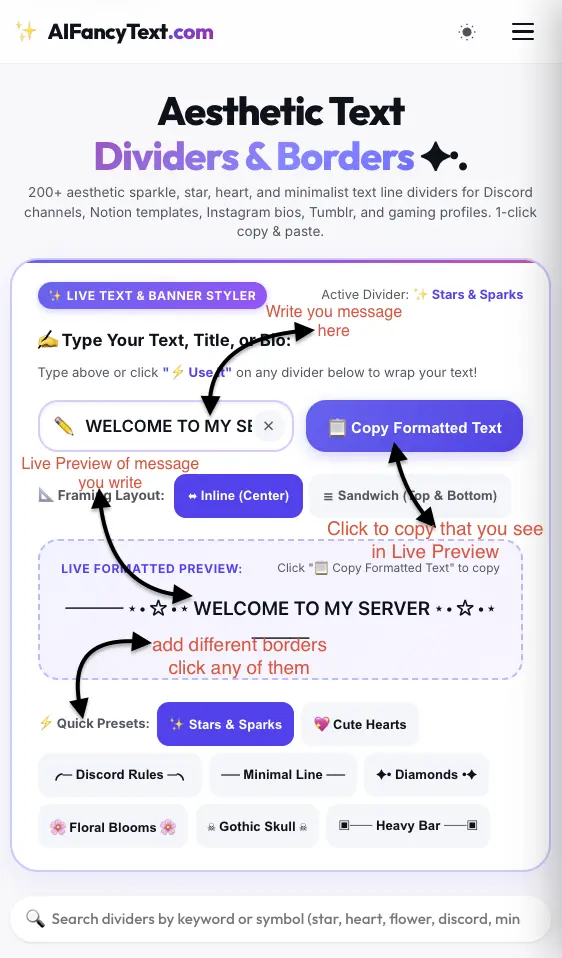
1. Decorate Your Text with Borders
First, find the text input box on the website. You can choose a text type, such as Title or Bio, depending on what you want to create.
Next, type your message in the input box. For example, you can write "I love my country."
Once you enter your text, you'll see a live preview of your message with a decorative border that you will see it in Live Formatted Preview:
You can also use the Quick Presets to change the border style. Choose from options like Stars & Sparkles, Cute Hearts, Discord Rules, Minimal Lines, Diamonds, and Floral Blooms.
Simply click on a style to apply it. You can try different styles until you find your favorite one.
When you're happy with the result, click the Copy Formatted Text button to copy your decorated message.
On a computer, this button appears beside the text input box. On a mobile phone, you'll find it below the input box.
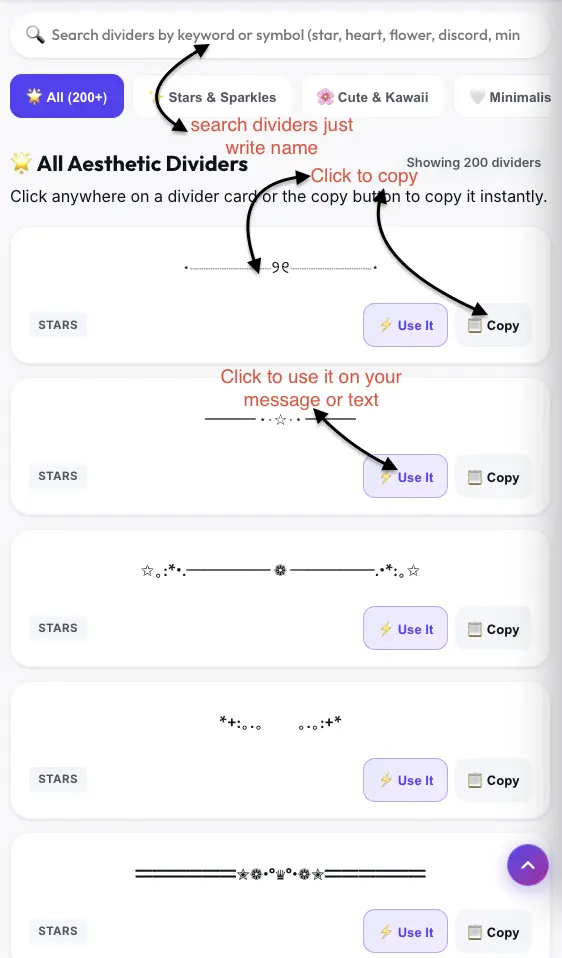
2. Explore Different Dividers and Borders
Our website has around 200 aesthetic dividers and borders to choose from. You can use them to decorate your messages, bios, and social media profiles.
To find a specific divider, type its name into the search box. Matching dividers will appear if they are available in the library.
You can also browse dividers by category. For example, click Stars & Sparkles to see star-themed designs, or choose Cute Kawaii to find cute and colorful styles.
Explore the different categories to find a divider that matches your style.
3. How to Copy a Divider
Found a divider you like? You can copy it and use it anywhere.
Click the divider's Copy button to copy only the divider. You can then paste it into your social media bio, profile, or chat message.
4. How to Add a Divider to Your Message
If you want to add a divider to your message, click the Use It button.
The website will take you back to the text input box and add the selected divider to your message. You'll see the result in the live preview.
You can try other dividers until you find the one you like best.
Finally, click Copy Formatted Text to copy your complete message with the decorative border.
That's it! Now you can easily create beautiful messages using aesthetic text dividers and borders.